Install EntiHub
Deploy EntiHub into your Azure subscription, point it at your warehouse database, and let the application initialize its own configuration schema on first run. No hand-written DDL is required.
Walkthrough video
Prerequisites
- An Azure subscription with permission to deploy marketplace solutions and manage container workloads.
- A Microsoft Entra ID tenant for user and service-principal authentication.
- A target database reachable from your deployment: Microsoft Fabric / Azure SQL, PostgreSQL, Oracle, or MySQL.
Supported database backends
| Engine | Typical deployment | Authentication |
|---|---|---|
SqlServer |
Microsoft Fabric Warehouse, Azure SQL, on-prem SQL Server | ServicePrincipal or SqlUser |
PostgreSql |
Azure Database for PostgreSQL, AWS RDS, self-hosted | SqlUser |
Oracle |
Autonomous Database, on-prem via SQL*Net/Easy Connect | SqlUser |
MySql |
Azure Database for MySQL, cloud or self-hosted | SqlUser |
Azure Marketplace deployment
EntiHub is currently installed from Azure Marketplace. To start the installation, search for EntiHub - MDM in Azure Marketplace.
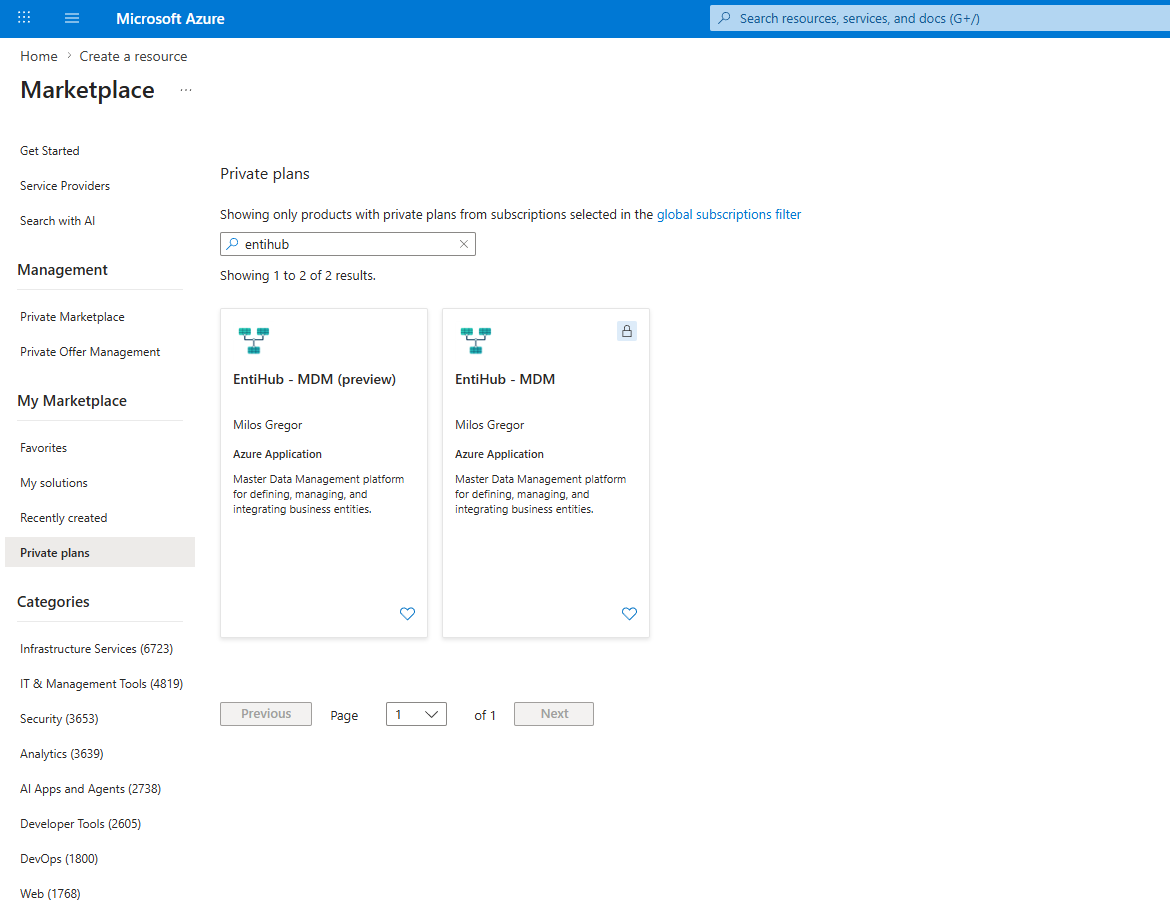
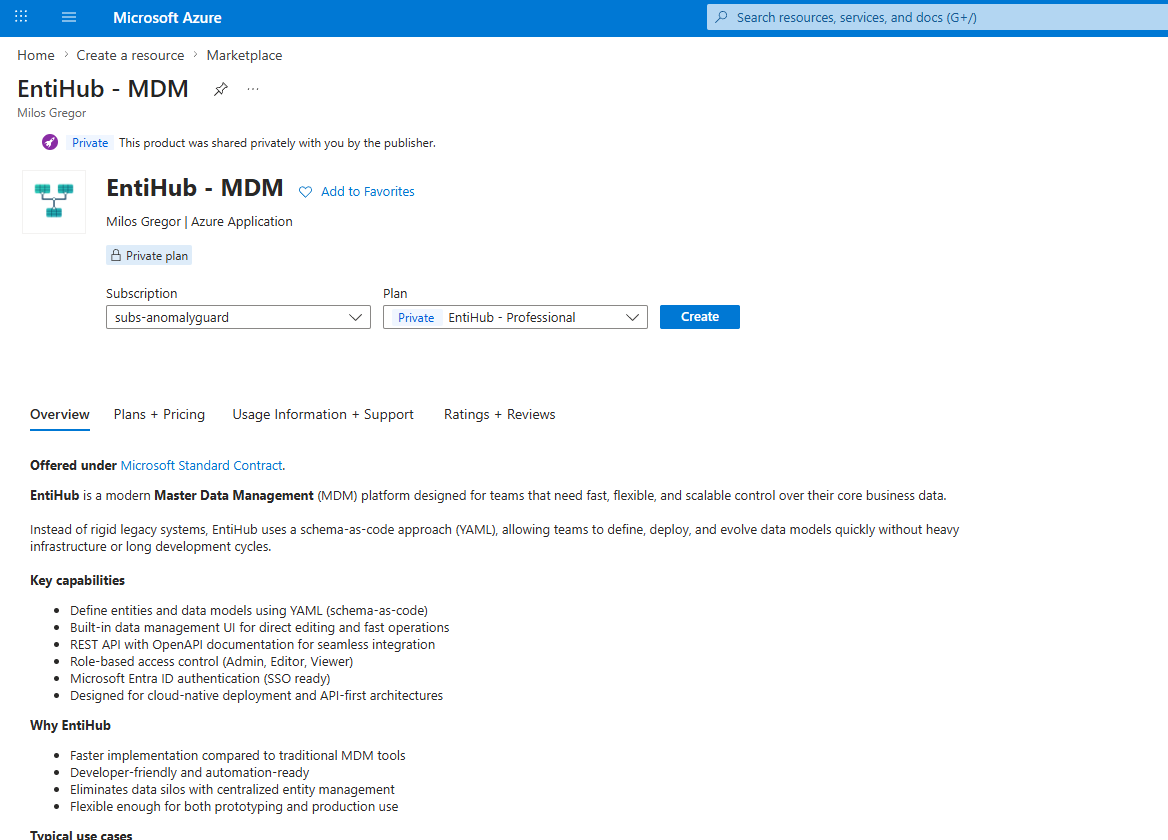
After selecting the Marketplace offer, Azure displays the EntiHub offer details. Choose the application tier you want to use from the selection input (Small, Professional, or Enterprise), then click Create.
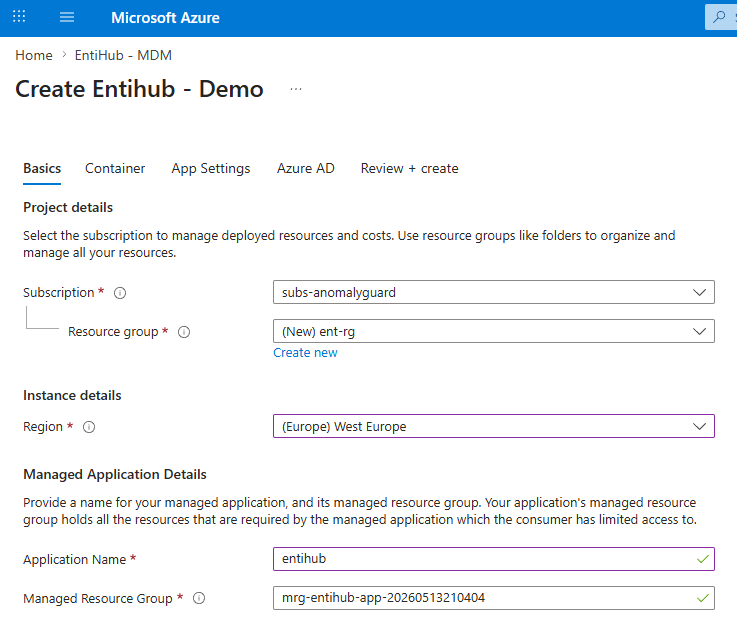
Azure then opens the solution configuration wizard. The settings are divided into several tabs. On the Basics tab, define the basic deployment parameters. First, select the subscription that will be charged for the infrastructure and license costs. Next, select the Azure resource group where the application will be installed. Then select the Azure region where the application will be deployed.
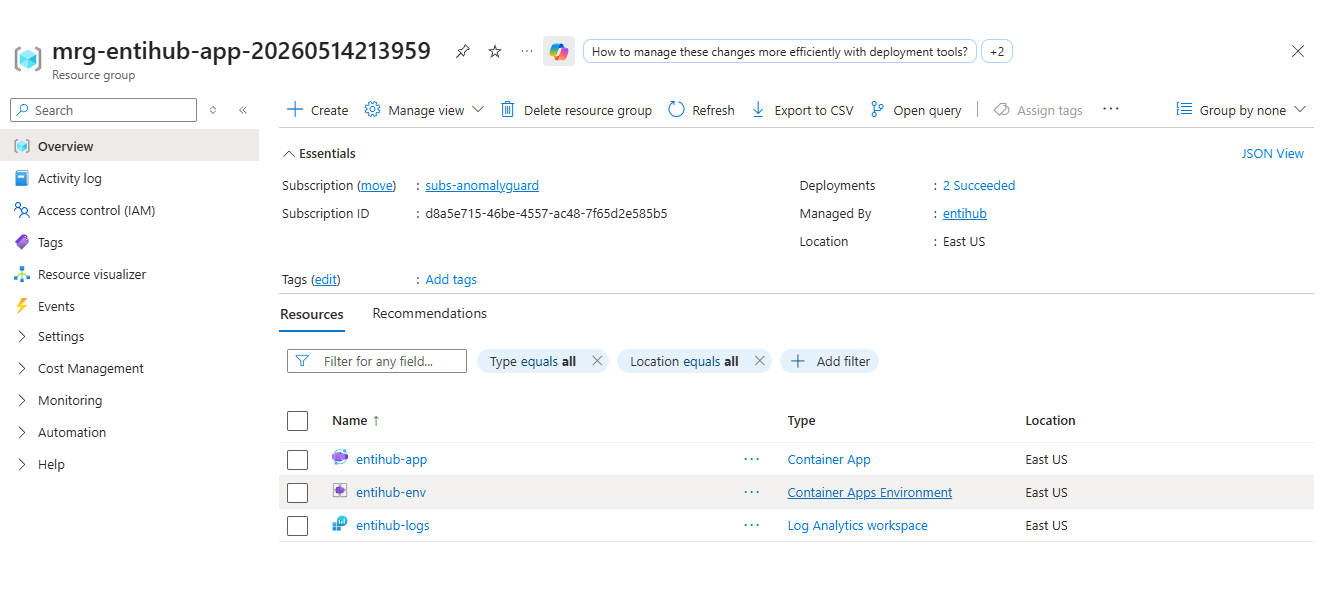
In Managed Application Details, define the Application Name under which the application will be visible in Azure, and the Managed Resource Group where the full application instance will be created. This managed resource group contains all application components, and the customer has only limited access to it. It contains the Container Apps environment, Log Analytics workspace, and Container App.
The naming of resources in the managed resource group can be configured on the Container tab. In the first three text inputs, define the names for the Container App, Container Apps environment, and Log Analytics workspace.
On the same tab, you can also configure two additional parameters: Network Access Mode and Compute Profile.
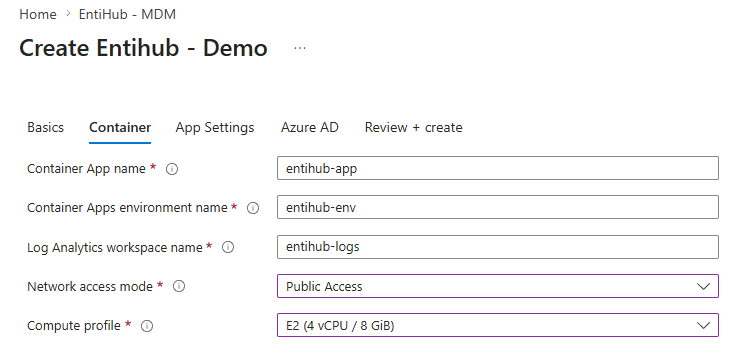
The network access mode defines how the application is accessible from an infrastructure perspective. If it is set to Public Access, the application is accessible from the public internet. If you want to place it in a selected VNet and control access, for example from corporate infrastructure only, choose VNet Integration.
When VNet Integration is selected, an additional text input appears where you must provide the ID of the selected subnet where the application will be placed. The Container Apps environment is then created as restricted, and public internet access to the application is limited according to the infrastructure settings of the selected subnet. Make sure that the application has access from this subnet to the source database where all settings and data will be stored.

In the next step, configure App Settings on the third tab. First, define the Database Backend. You can choose SqlServer (including Azure SQL and Fabric SQL), PostgreSql, MySql, or Oracle. EntiHub supports these databases as its backend.
Next, define the Database Connection String. This is the connection string for the database backend selected in the previous step. Use the ADO.NET connection string format.
SQL Server:
Server=tcp:myserver.database.windows.net,1433;Database=myDataBase;User ID=mylogin@myserver;Password=myPassword;Trusted_Connection=False;Encrypt=True;
PostgreSQL:
Provider=PostgreSQL OLE DB Provider;Data Source=myServerAddress;location=myDataBase;User ID=myUsername;password=myPassword;timeout=1000;
Oracle:
Data Source=(DESCRIPTION=(ADDRESS=(PROTOCOL=TCP)(HOST=MyHost)(PORT=MyPort))(CONNECT_DATA=(SERVICE_NAME=MyOracleSID)));User Id=myUsername;Password=myPassword;
MySQL:
Server=myServerAddress;Database=myDataBase;Uid=myUsername;Pwd=myPassword;SslMode=Required;
When defining the connection string, it is recommended to set higher timeout values. Some steps or functions may require a longer processing time, and higher timeouts help avoid timeout errors. For Azure SQL or Fabric SQL databases, the connection string can also use a service principal for authentication.
Next, define the database schema for the application configuration and the database schema for MDM data. EntiHub stores data in these schemas. If they do not exist, the application creates them.
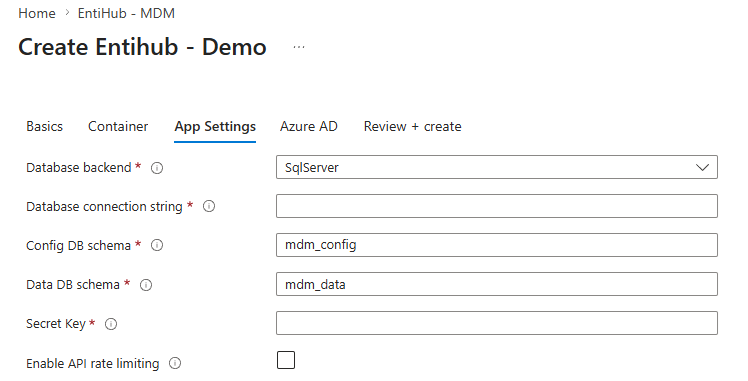
Another important installation parameter is Secret Key. The application uses this key to encrypt sensitive configuration data so that it is not directly accessible in the database. This also prevents someone with access to the database backend from changing user access to entity data directly in the database. The same secret is used for other sensitive information stored in the database. Store this secret safely. During an application upgrade or reinstallation, configuration data may be lost if the original secret key is not available.
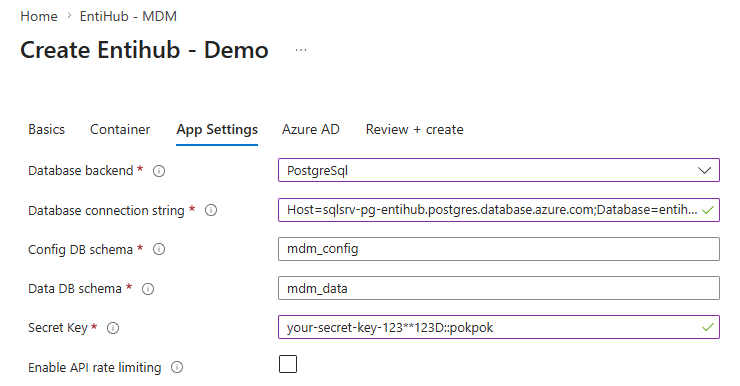
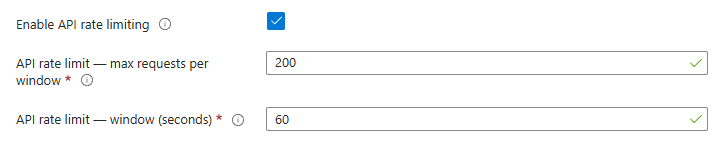
EntiHub also supports API rate limiting. During installation, you can define the maximum number of API requests that a user can make within a defined time window. To enable this feature, set Enable API Rate Limiting to True. In the displayed inputs, define the maximum number of requests in the window and the window length in seconds.
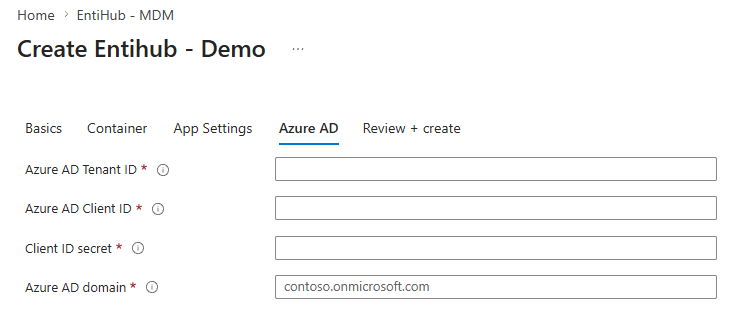
On the next tab, define the Azure AD settings that the application uses for authentication. Provide the Tenant ID, Client ID, and Client Secret of the prepared service principal. See the Setup Service Principal documentation. Finally, define the Azure AD domain under which authentication will be performed.
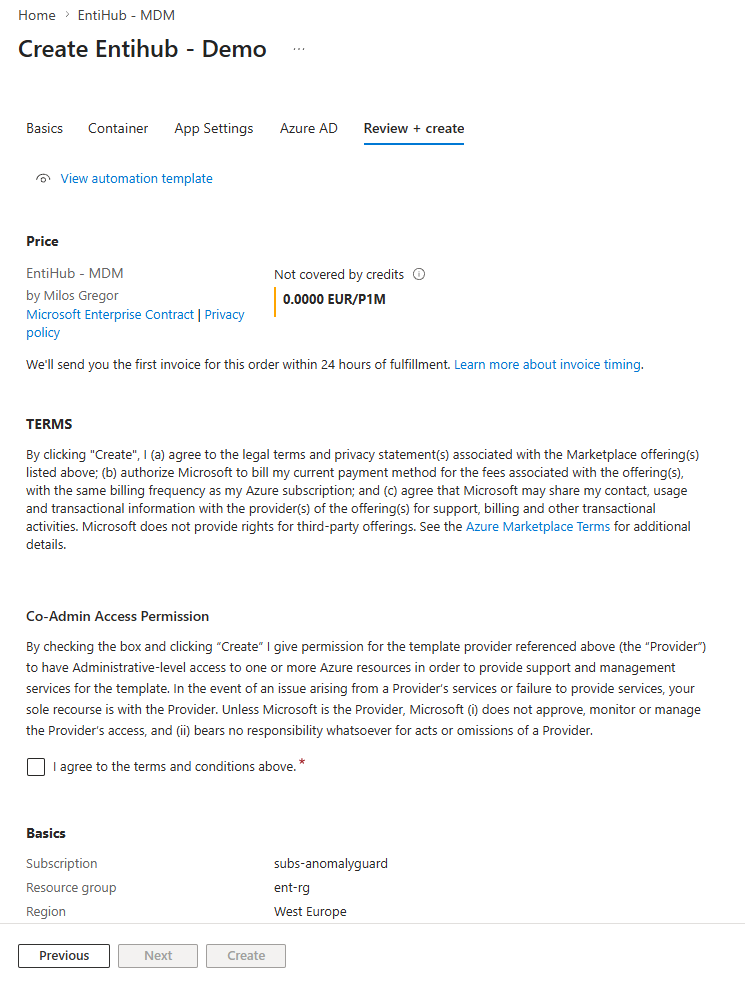
After all settings are configured, click Review + create. Azure Marketplace validates the configuration and displays the license price for the selected tier, terms, and access permission settings. After you select I agree to the terms and conditions above, Azure Marketplace enables the Create button.
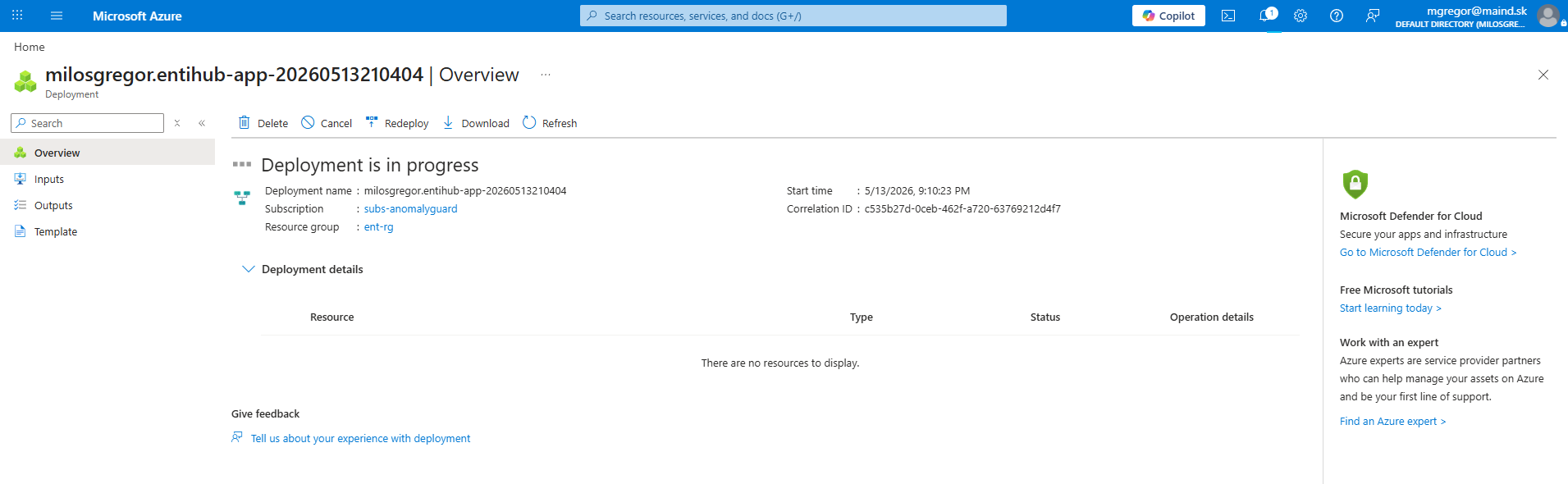
After clicking Create, the application installation starts in your Azure subscription according to the configured settings.
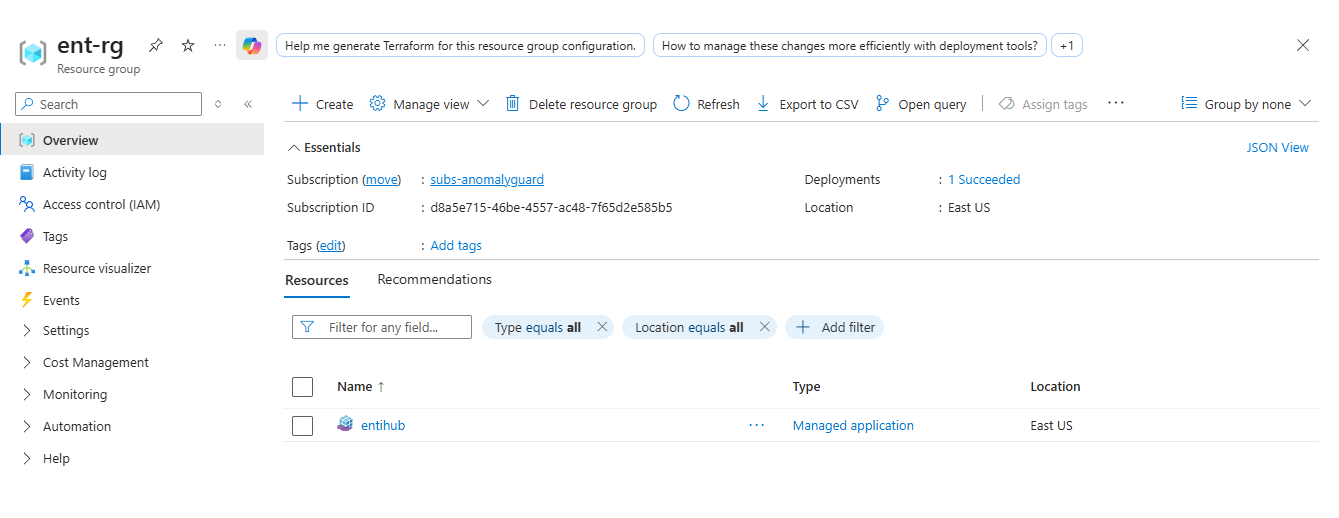
After the installation completes successfully, the application is ready. In the selected resource group, it appears under the configured name as a Managed application.
When you open the managed application resource group, you can see all installed application resources. Access to this resource group is limited. For example, you can read and analyze application logs through the Log Analytics workspace. All other administration steps are performed through the original resource group where the managed application is installed.
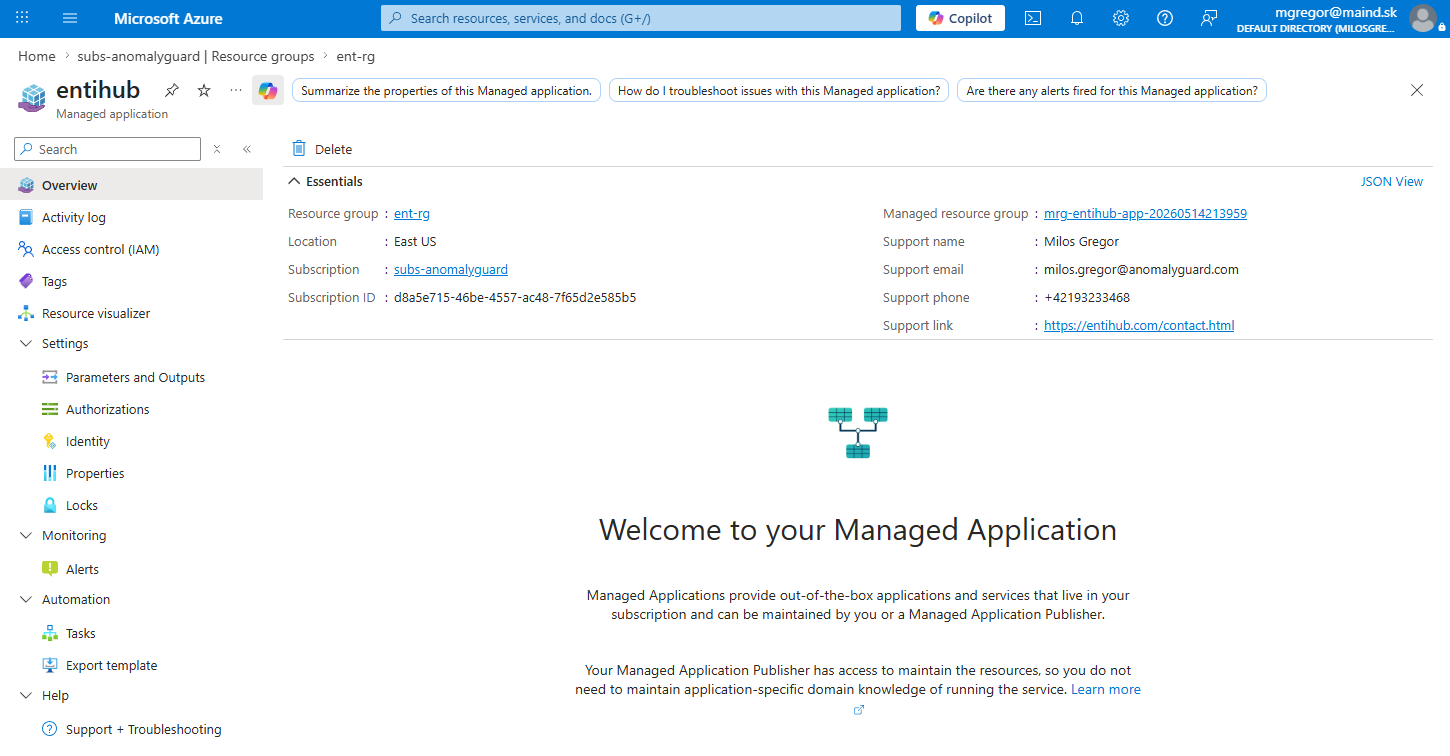
When you open the managed application, Azure displays information about the installed application, such as support contact details.
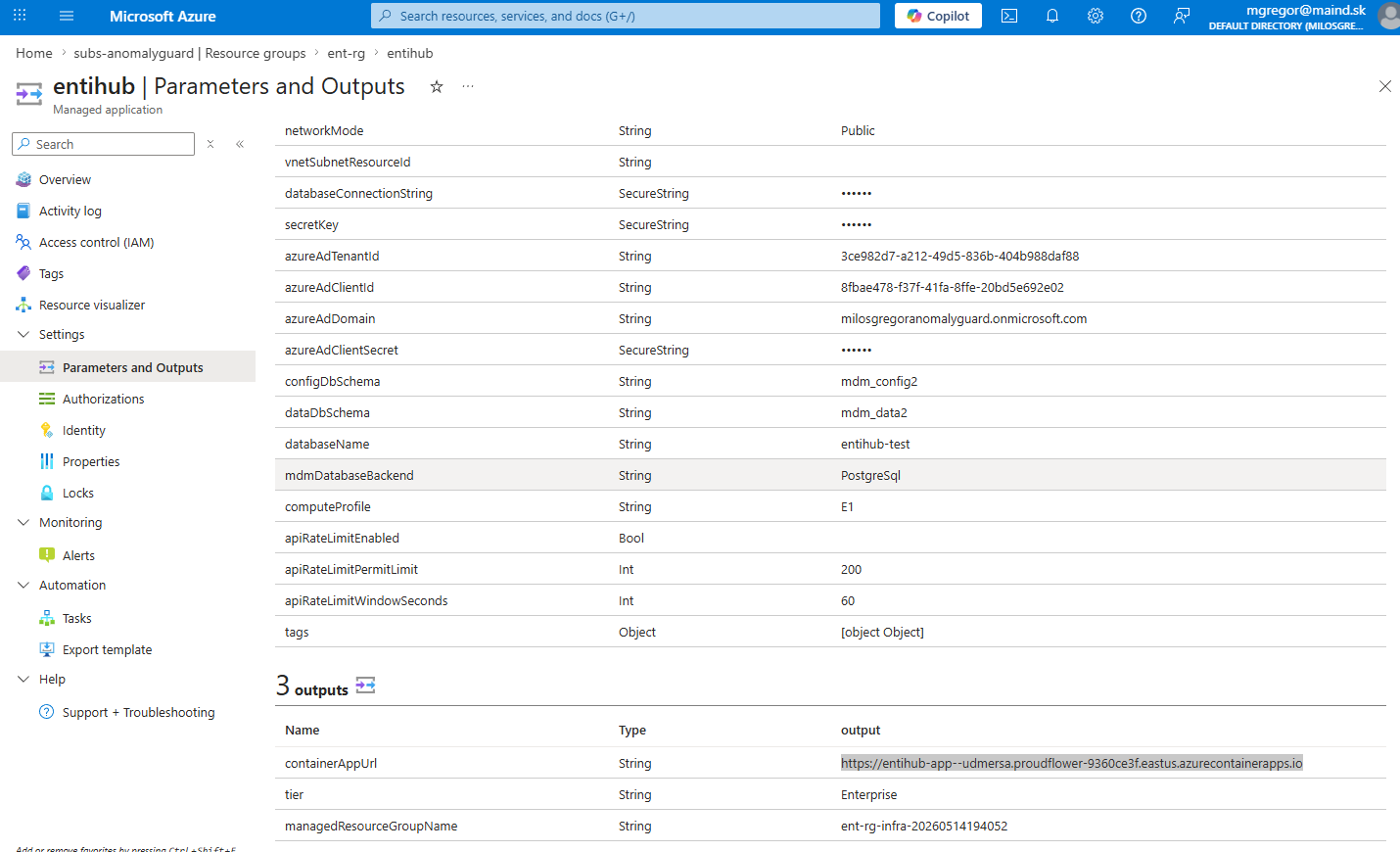
To find the URL where the GUI and API are available, open Parameters and Outputs from the left-side menu. In the lower Outputs section, find the containerAppUrl parameter. Use this URL to open the application in a browser.
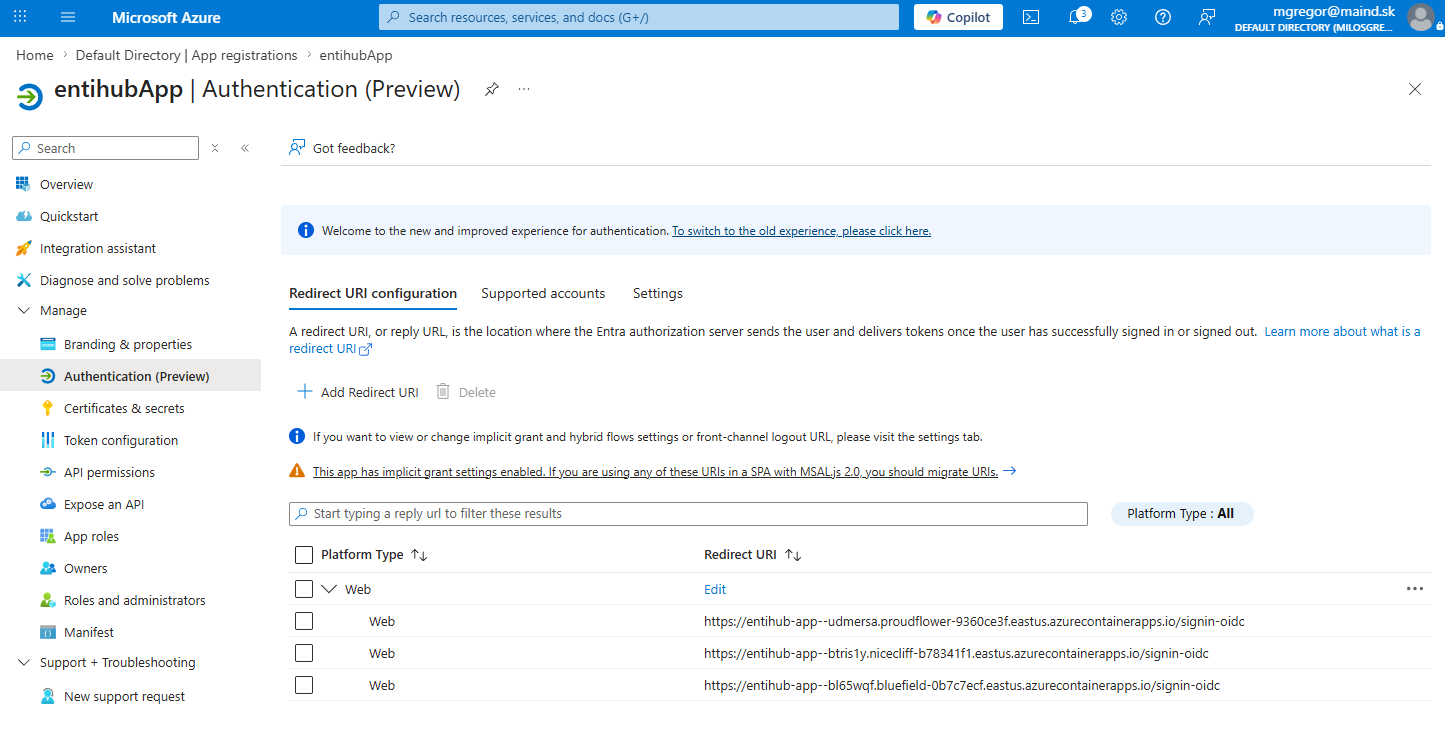
For authentication to work correctly, add this URL to the service principal's list of Redirect URIs in the following format:
{app-url}/signin-oidc
If the application will also be accessed through other URLs, such as company subdomains, add those URLs to the Redirect URI list as well.
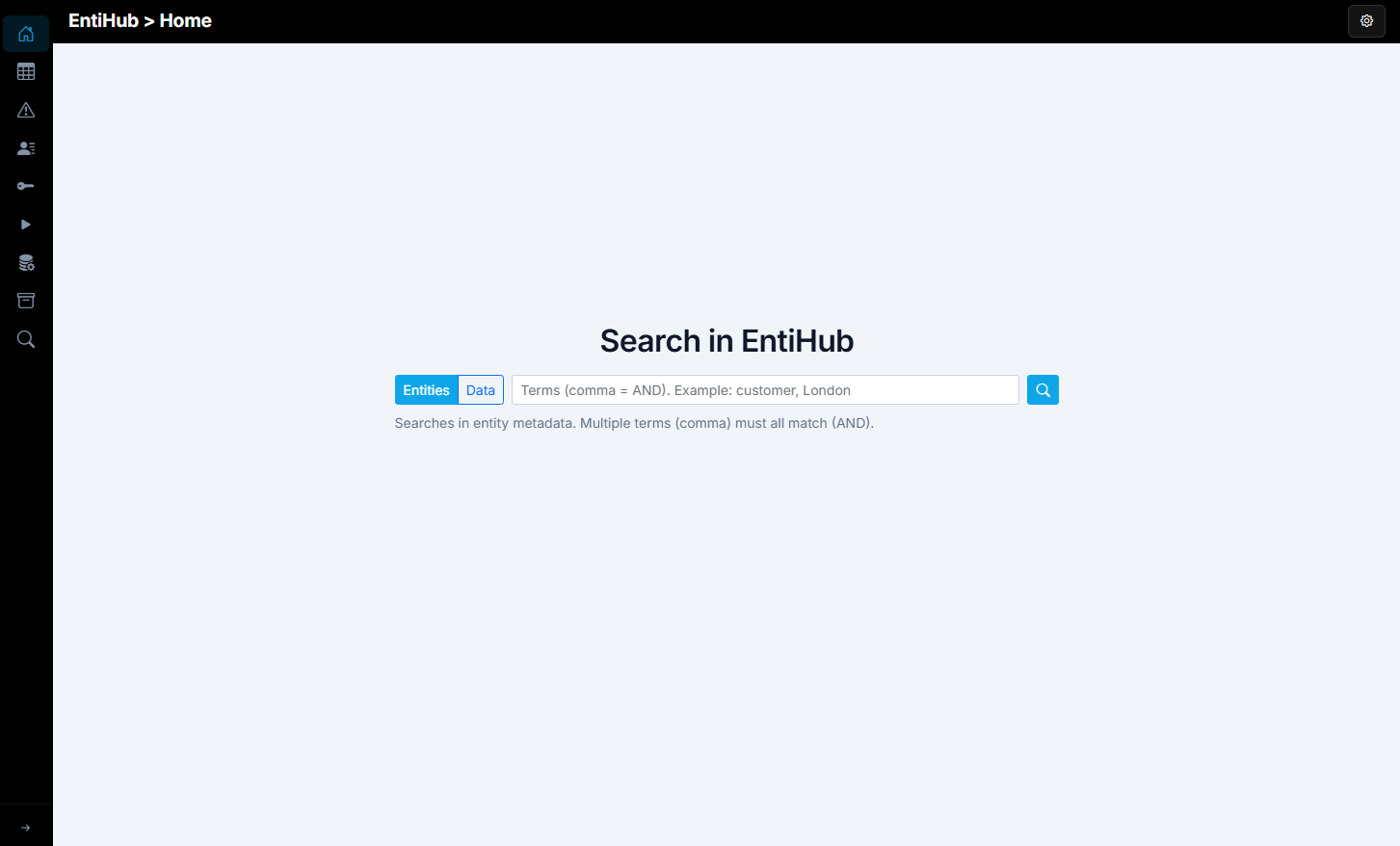
The application is then ready to use. When you open the application URL and authenticate successfully, the user can access the application GUI. Do not forget to assign the user role in Azure AD (entihub-user or entihub-admin).
Remove the application from Azure
To uninstall the application from your Azure subscription, open the managed application in the Azure portal and click Delete in the header menu. After confirmation, the application is fully uninstalled. This removes not only the managed application, but also the entire managed application resource group, including the Container App, Container Apps environment, and Log Analytics workspace.
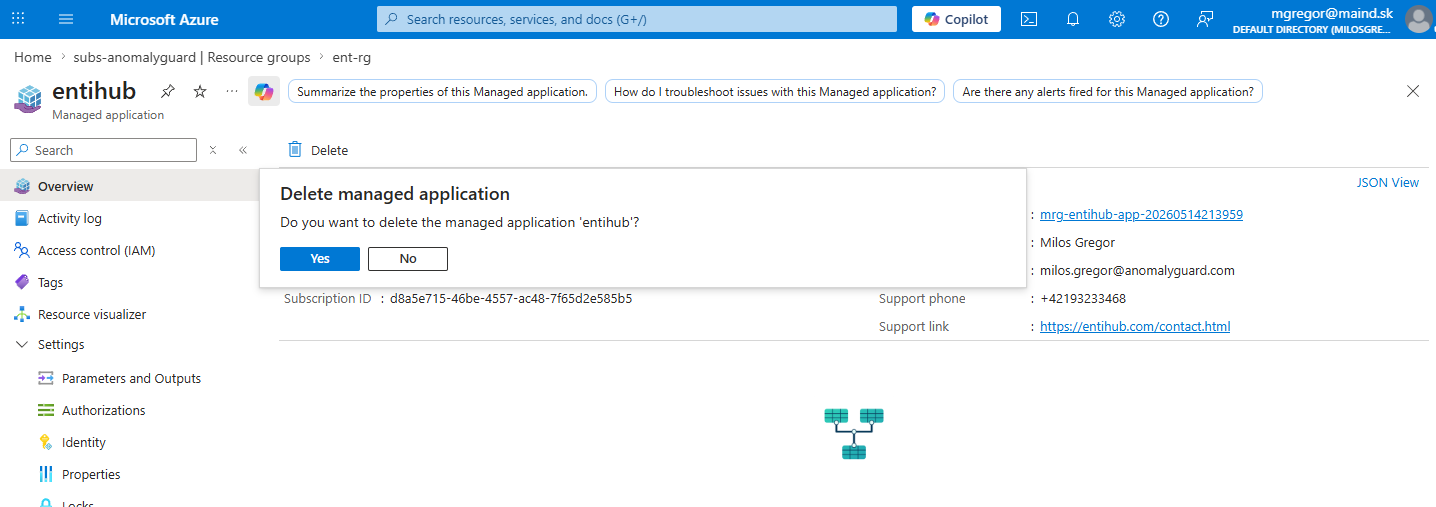
After the application is removed, the EntiHub license is no longer charged to your subscription. If you want to use the application again, install it again from Azure Marketplace. Use the same approach when you want to update the application.
Because application configuration data and entity data are stored in an external database, this data remains available after you stop using the application, without restrictions or limits.
The following section summarizes the total infrastructure costs for the application.
Infrastructure costs
The Azure Marketplace ARM templates deploy EntiHub runtime only—not your database. Monthly Azure spend is mainly Azure Container Apps (Consumption plan) and Log Analytics. The warehouse or database (Microsoft Fabric, Azure SQL, PostgreSQL, and so on) is billed separately and is often the largest cost item.
Resources created by the template
| Resource | Notes |
|---|---|
| Log Analytics workspace | SKU PerGB2018, 30-day retention |
| Container Apps environment | Consumption plan (no Dedicated workload profile) |
| Container App | Single replica (minReplicas = maxReplicas = 1), image from entihub.azurecr.io |
| VNet mode (optional) | Uses an existing customer subnet; the template does not create a virtual network |
Not included in the template: database, Microsoft Entra ID licensing, Fabric capacity, or the EntiHub Marketplace software license.
Compute profiles by plan
| Marketplace plan | Profile | vCPU | Memory | Default at deploy |
|---|---|---|---|---|
| Small | S0_5 | 0.5 | 1 GiB | |
| Small | S1 | 1.0 | 2 GiB | Yes |
| Professional | P1 | 1.0 | 2 GiB | |
| Professional | P2 | 2.0 | 4 GiB | Yes |
| Enterprise | E1 | 2.0 | 4 GiB | Yes (only option) |
Professional (P2) and Enterprise (E1) use the same Azure compute footprint. Tiers differ by licensed features (Mdm__Tier), not by additional ARM resources.
Indicative monthly Azure cost (runtime only)
Estimates assume one replica running 24/7, Consumption active billing rates (typical US/EU regions), and the subscription-wide free grants for Container Apps: 180,000 vCPU-seconds, 360,000 GiB-seconds, and 2 million HTTP requests per month. Health probe traffic is not counted toward request charges.
| Profile | Container Apps (approx.) | Log Analytics (approx.) | Total app infra (approx.) |
|---|---|---|---|
| S0_5 | $30–35 | $0–15 | $35–50 |
| S1 / P1 | $70–80 | $0–20 | $75–100 |
| P2 / E1 | $145–160 | $0–25 | $150–185 |
Log Analytics cost depends on log volume; light usage often stays within the first few gigabytes per month. Above that, ingestion is billed per GB (region-dependent, typically about $2–3/GB).
If the replica qualifies for idle billing (minimum one replica, very low CPU and traffic), Container Apps charges can be roughly half to one third of the active figures above—for example S0_5 about $10–15/month, P2/E1 about $45–55/month. With periodic health checks, the app may remain in active billing more often.
HTTP requests beyond 2 million per month per subscription are about $0.40 per million.
VNet mode: no extra Container Apps environment fee from the template; you pay for existing network resources (subnet, peering, private connectivity to the database, and so on).
Costs outside this deployment
| Item | Typical impact |
|---|---|
| Database (Fabric Warehouse, Azure SQL, PostgreSQL, …) | Often tens to hundreds+ USD/month, depending on SKU and data volume |
| Microsoft Entra ID | Usually covered by existing tenant licensing |
| EntiHub Marketplace license | Software subscription (see License); not part of Azure infrastructure meter |
| Data egress | Depends on database location and cloud provider |
Accurate quotes
Prices change by region, currency, and agreement. Use the Azure pricing calculator with Container Apps (Consumption) and Log Analytics, 730 hours per month, one replica, and the vCPU/memory from the table above. Add your database and networking separately.
Health check
GET /health- lightweight liveness probe.GET /health/ready- verifies the application can reach the database with configured credentials.