Import / Export Entity Data
In addition to manually editing records in individual entities, you can also edit data in bulk using import/export features. These features are available in the Professional tier of the application.
EntiHub supports import and export in three formats:
- CSV
- JSON
- XLSX
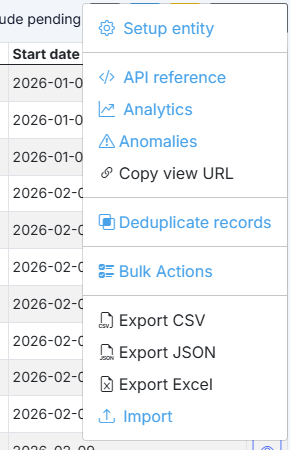
All three formats can be used for both export and import. For export, there are three actions in the Action menu:
- Export CSV
- Export JSON
- Export Excel
Click any of these options to export data. To import data back into an entity, click the last Action menu item: Import.
After clicking this option, a new dialog opens where you can configure the import. First, select the Source in the first selector (CSV, JSON, XLSX).
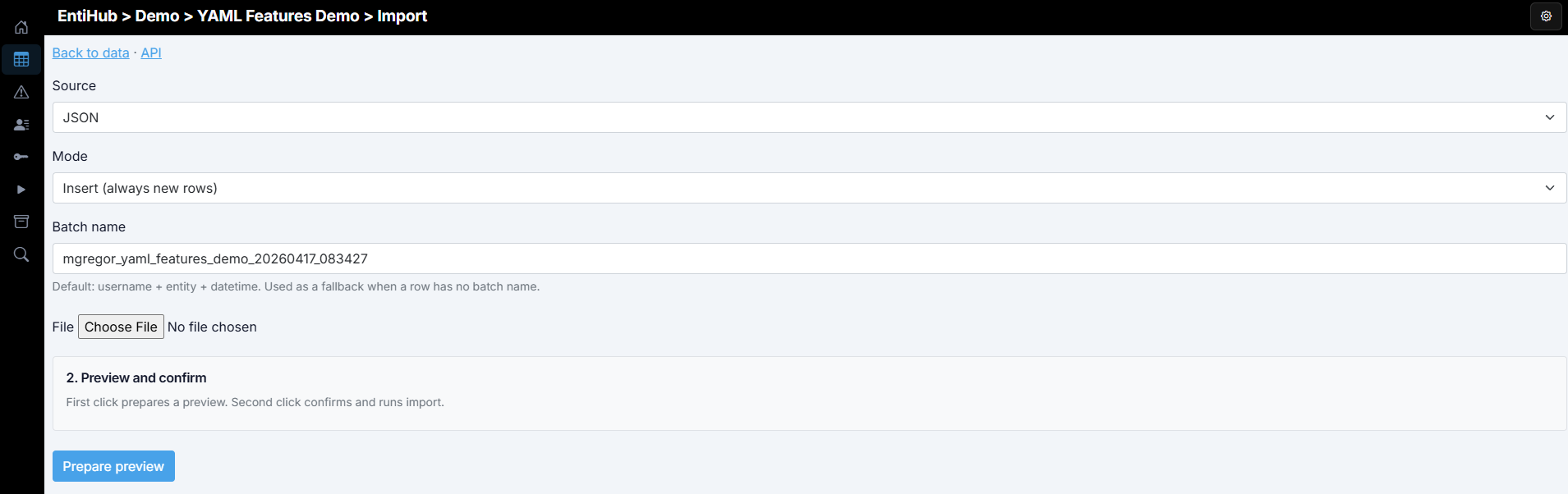
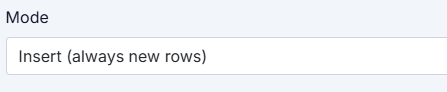
In the second selector, choose the import mode that defines how data is processed. The first option is Insert (always new rows). This mode reads data from the input file and simply appends it to the current entity data.
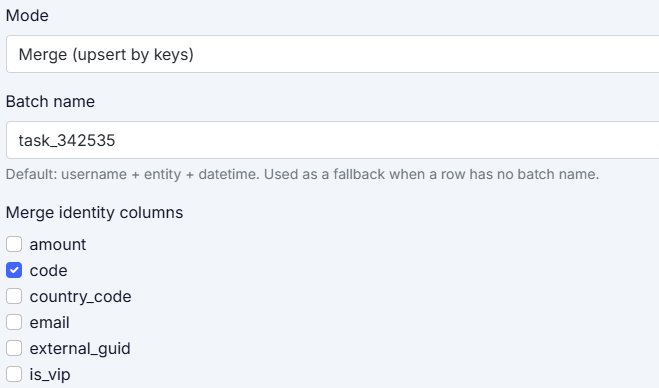
The second option is Merge (upsert by keys). In this mode, data is updated. Based on the selected Merge identity columns, the system tries to find an existing record in the database. If found, selected values are updated. If not found, a new record is inserted.
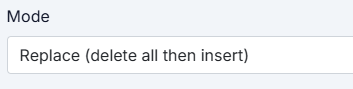
The last option is Replace (delete all then insert). This mode replaces all data: existing records are deleted first, then new records are imported.
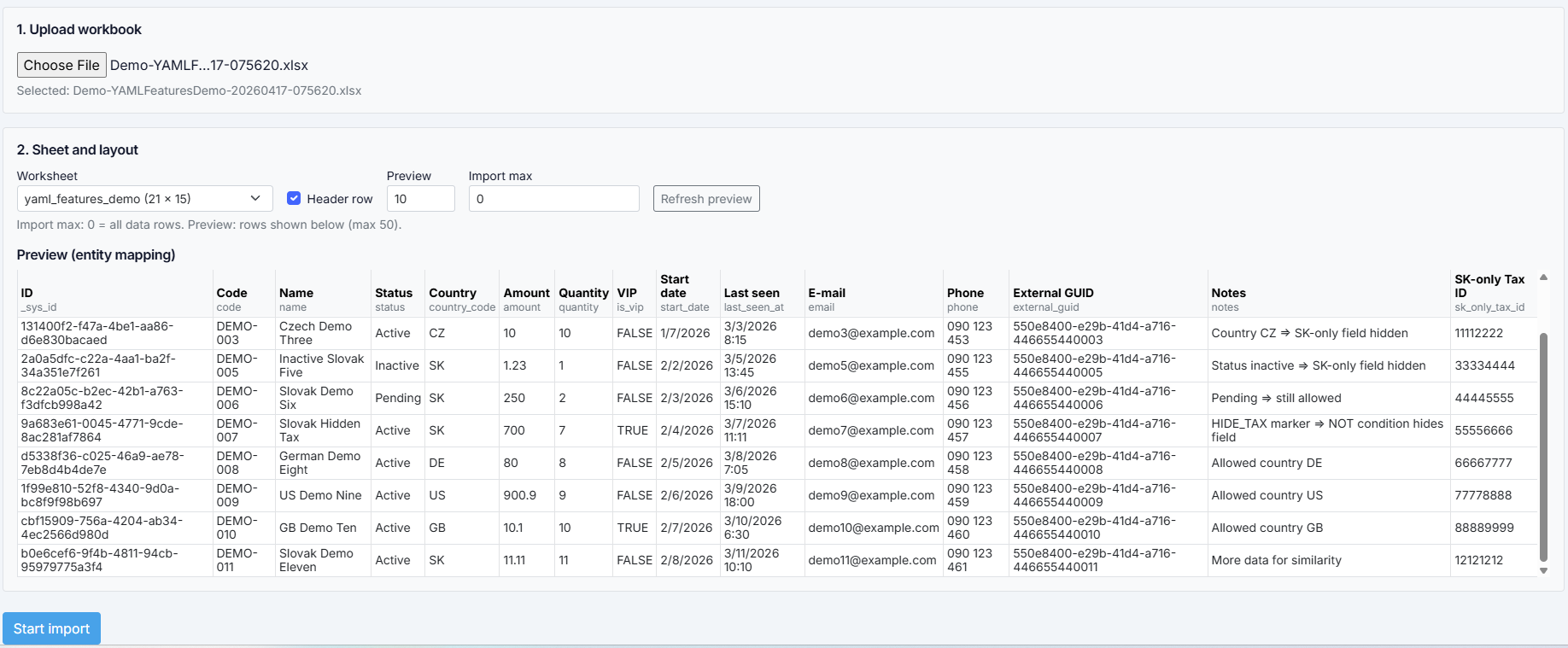
The import flow is two-step. First, you choose a file from disk. The file is uploaded temporarily, parsed, mapped to the current entity schema, and a preview of the first 10 rows is shown.
At this stage, you can see how file columns are mapped to entity columns. Mapping is done primarily by YAML entity column name (the same names used for export). If a column is not matched, the system tries display name matching. Matching is case-insensitive.
If the preview looks correct, click Confirm & Execute. The data is then imported into the entity according to the selected settings.
There are two additional parameters for CSV imports: separator and quote. By default, these are set to semicolon and double quote. The same defaults are used for CSV export.

For export, you can also use additional API endpoints where you can configure dataset size (pagination), time-travel, filtering, and more. Details are available in the built-in Swagger documentation and in the API endpoint list accessible from the main entity page. This documentation also includes all API endpoints defined in the YAML entity configuration under consumption.views.