Bulk Entity Updates
Bulk updates let you apply large-scale changes to entity records in a controlled and repeatable way. Using bulk entity updates, you can either edit data or delete rows using soft-delete.
To perform a bulk update, open the entity view, click Actions, and select Bulk Actions.
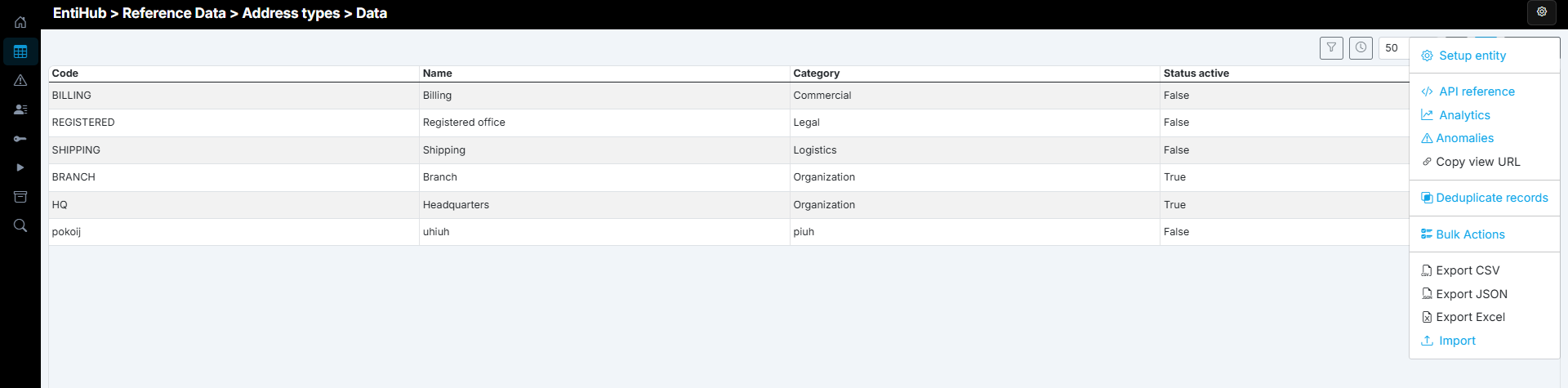
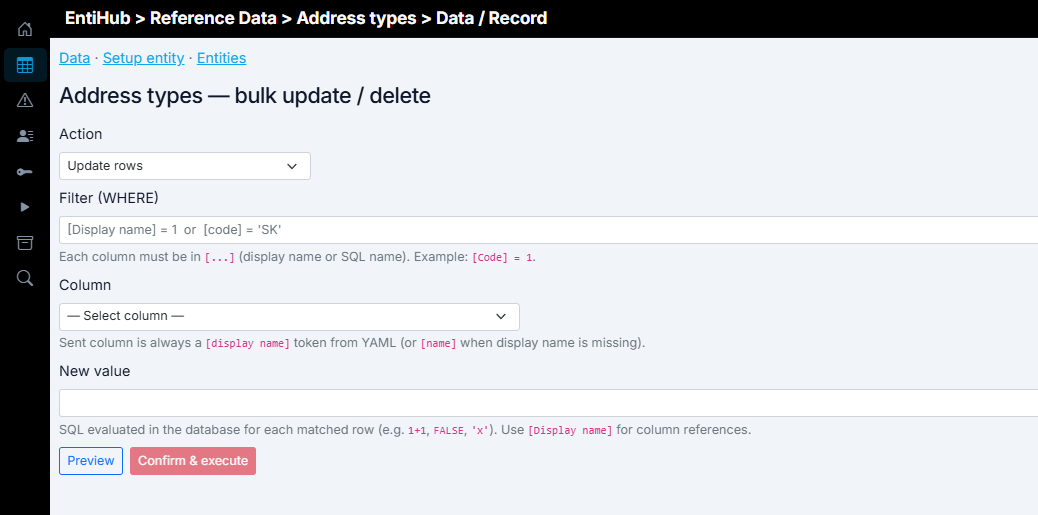
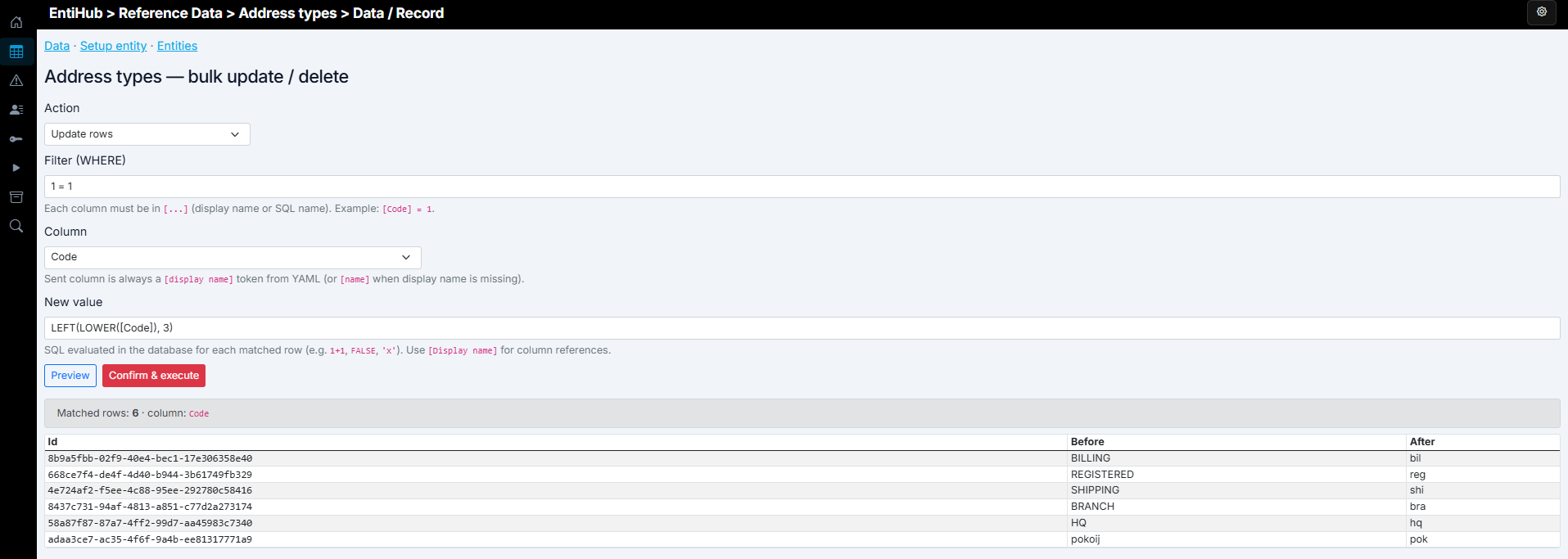
A new dialog opens where you can configure and run a bulk action. In the Action selector, choose whether you want to soft-delete rows or update their values. Based on this selection, additional parameters are shown or hidden.
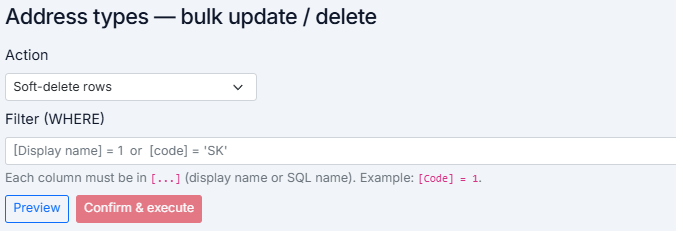
If you select Soft-delete rows, only one configurable parameter is shown: Filter. The filter is used to select which records should be modified. It has the same functionality as other filters in the application. It is a special DSL that combines EntiHub features with functions of the underlying SQL database. More details are described in the chapter about editing entity data.
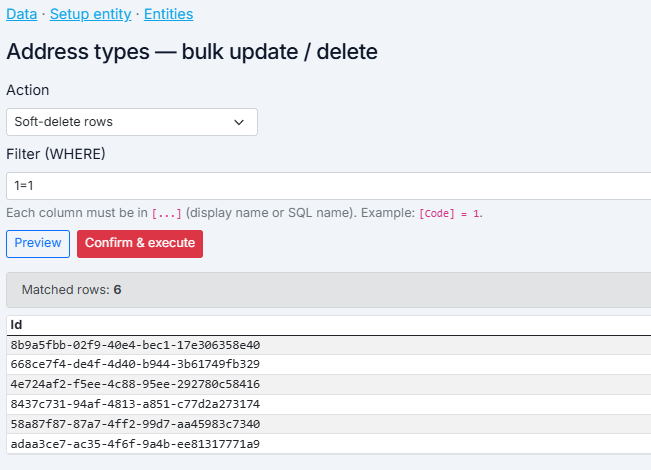
If the filter is empty, the application does not allow the bulk action to run. This safety check prevents accidental updates of all entity records. If you intentionally want to run the action for the entire entity, define a filter that matches all rows, for example 1=1.
You can always preview the action before execution. The preview shows the number of rows matched by the filter and, for updates, a result preview for the first N rows.
If you are satisfied with the preview, click Confirm & Execute to run the action.
If you select Update Rows, two additional parameters are shown. The first is Column selection, where you choose which column to update. You can update only one column per action.
Then, in New value, define the new value. You can provide either a direct value or an expression/query from the SQL backend. For example, if you provide a custom string, it must be wrapped in quotes just like in SQL. This interface is effectively a wrapper over an update query, where New value corresponds to what you would put into UPDATE table SET column_name = ....
For updates, clicking Preview shows how values change in sample rows, using a Before/After view.
If the entity has an active approval workflow, you can also specify a batch name. You can then approve those changes in bulk using that batch name.
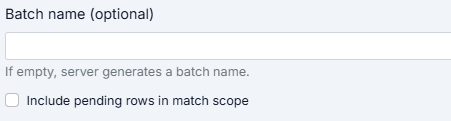
By selecting Include pending rows in match scope, you ensure that bulk changes are also applied to records that are prepared and pending but not yet approved.