GUI
The EntiHub GUI is optimized for daily master data operations: modeling entities, editing records, approvals, and operational governance. The GUI adapts to your role — administrators see different options than regular users.
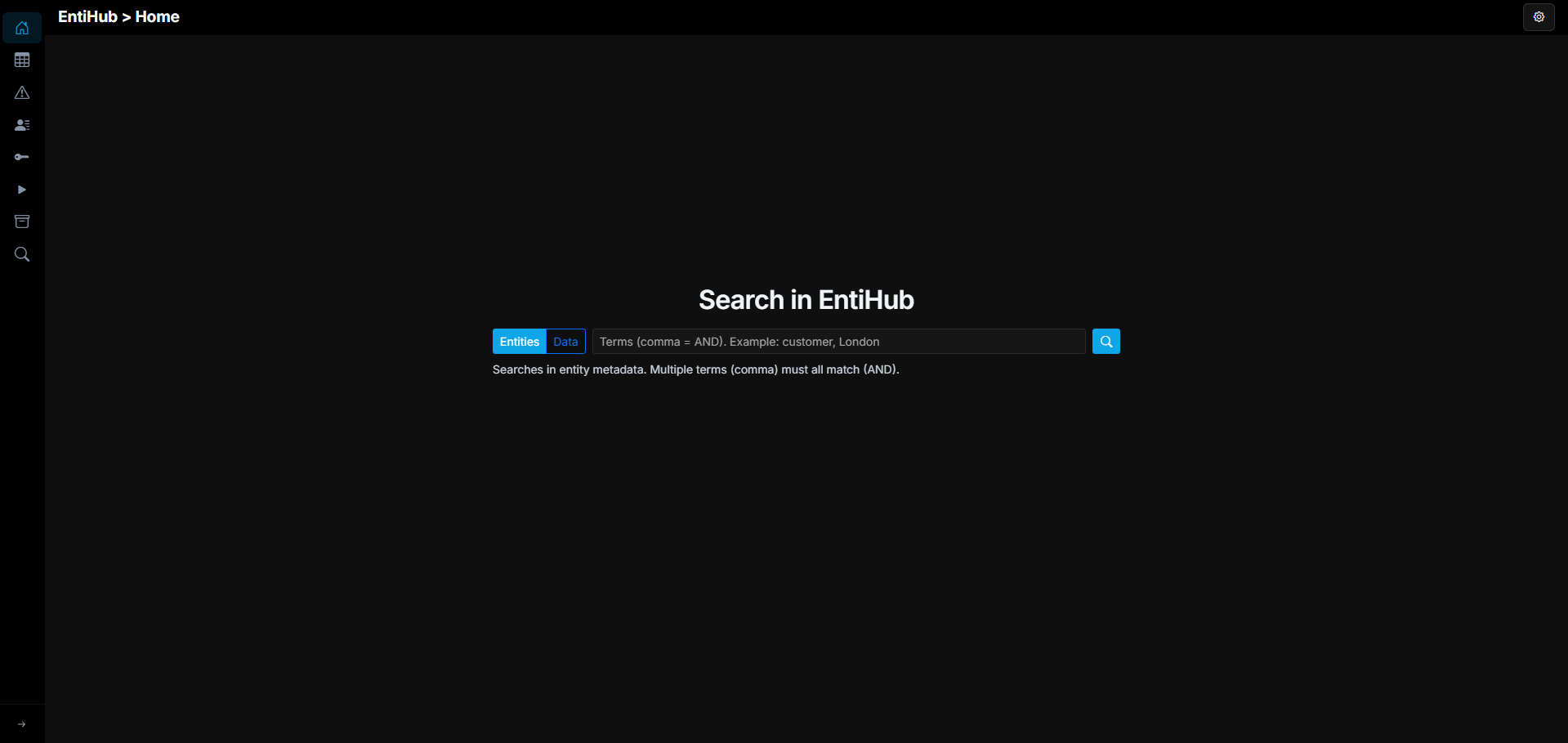
Overall, the user interface is divided into three sections: Settings menu in the upper right, side panel on the right, and main workspace area.
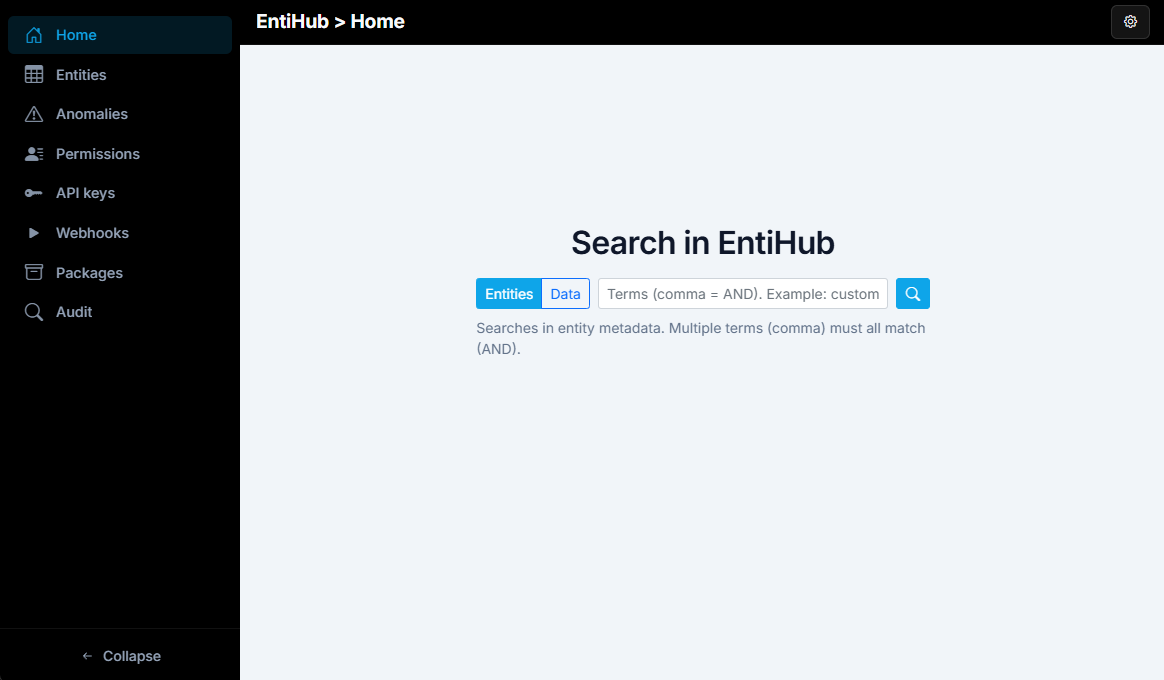
In the right side panel, you see items you can work with. A regular user sees three items: Home, Entities, and Anomalies. A global admin also sees additional items such as Permissions, API keys, Webhooks, Packages, and Audit. Each serves a specific purpose and will be explained in the next section.
The application contains the following sections: - Home — home page with search functionality - Entities — entity management (global admin sees all entities, user sees only entities they have permissions for) - Anomalies — displays detected anomalies based on their setup on the entity and defined user permissions - Permissions — management of user and API key permissions - API keys — API keys management - Webhooks — management of defined webhooks - Packages — export and deployment of entity packages - Audit — interface for audit trail of changes to entities
Additional options are in the Settings menu, located in the upper right corner.
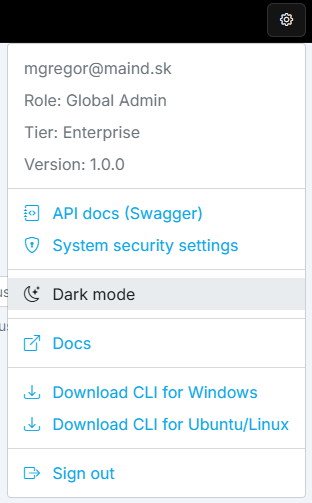
This menu also changes based on user role. The screenshot above shows an example for a global admin. The first section displays application information: the email of the currently signed-in user, their role, application tier, and installed version. The following functions are available:
-
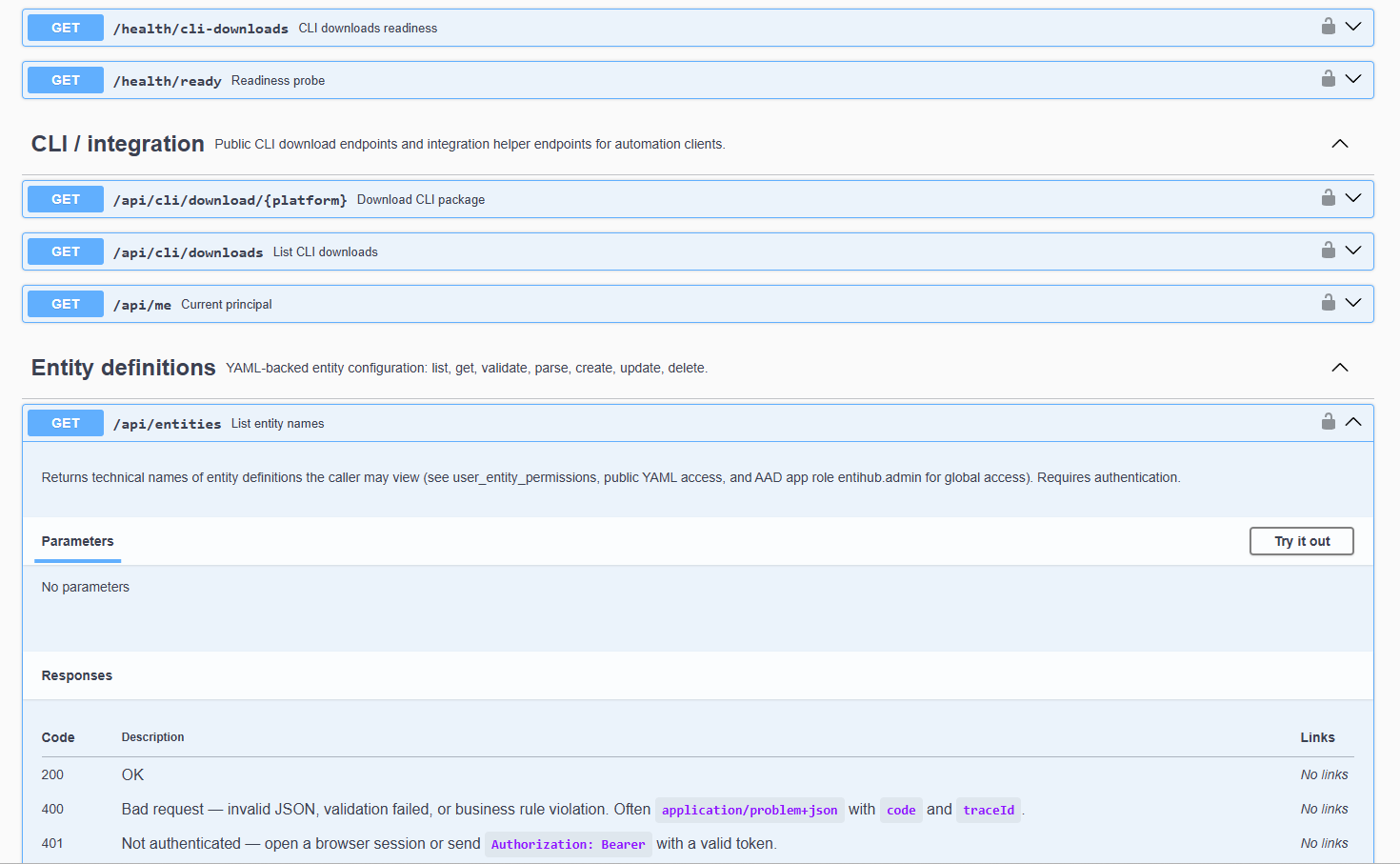
API docs (Swagger) — displays complete API documentation with interactive testing interface for developing EntiHub integrations. Accessible to Global Admins only.
-
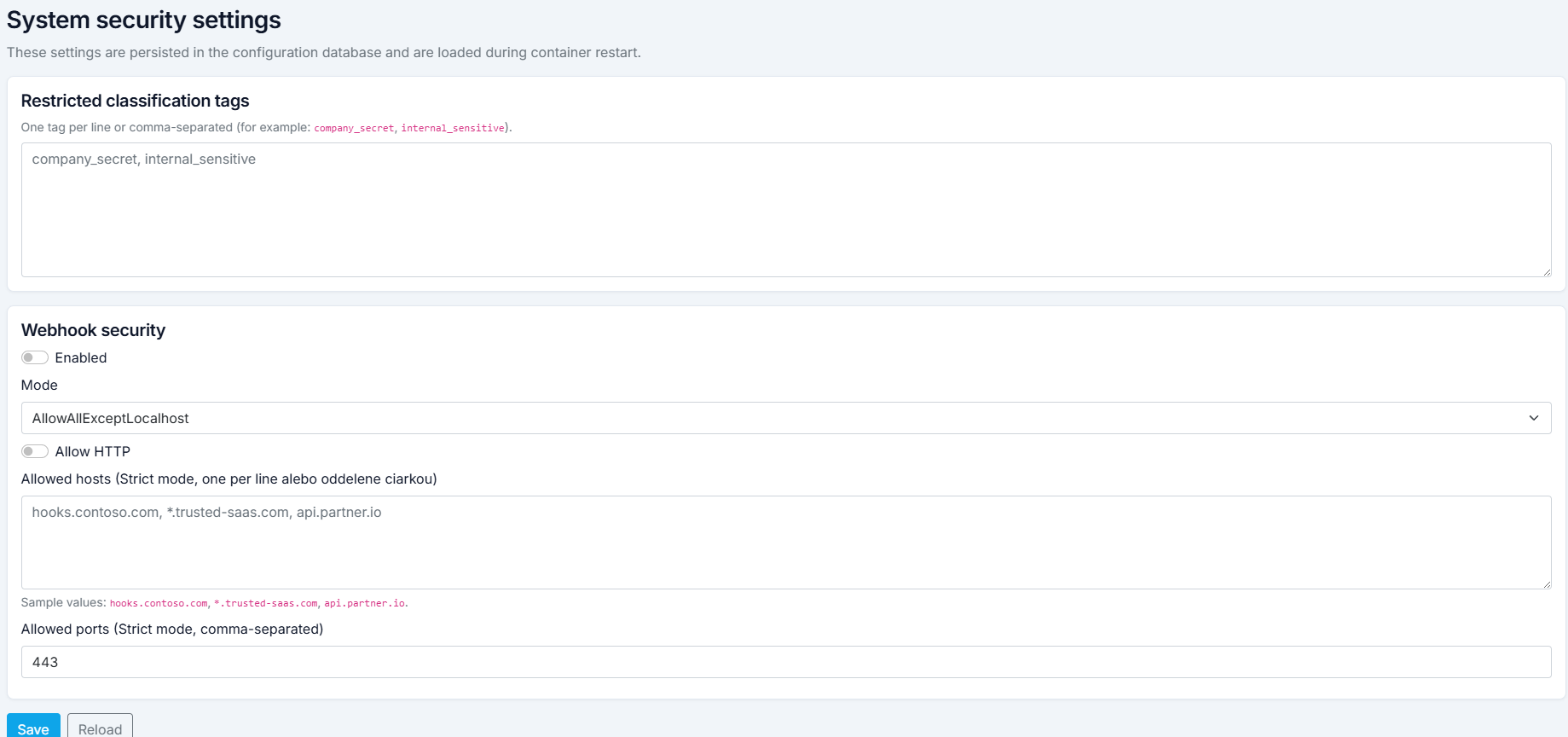
System security settings — available to Global Admins only. Displays global configuration options. Currently you can configure Restricted classification tags and Webhook security. Both will be described later.
-
Dark mode / Light mode — switch between dark and light modes for better readability.
-
Docs — displays this documentation.
-
Download CLI for Windows / Ubuntu — download CLI packages here. Downloads from this location ensure version compatibility with your EntiHub backend. Choose between Windows or Ubuntu/Linux versions.
-
Sign out — sign out from Microsoft Entra and the application.
These features will be covered in detail in the following sections.