Permissions
Permissions control who can view, edit, approve, and administer entities. If no permissions are defined, only Global Admin users defined in Microsoft Entra roles can work with entities.
To manage permissions, click Permissions in the left side panel. A table with defined permissions is displayed. To add a permission, click Add in the top-right corner.

A dialog opens where you enter a list of users in the first input. You can assign permissions to multiple users at once. Then select a domain and entity. You can also define permissions for all domains, or for all entities in a selected domain, by leaving specific selections unset.
Finally, select checkboxes for the actions you want to allow. Read, Write, and Approve are standard action types. Read restricted allows reading columns defined as restricted. The Admin role allows administration of the selected domain or entity and also allows assigning permissions to other users in that scope (for example, granting someone rights-management permissions within a specific domain).
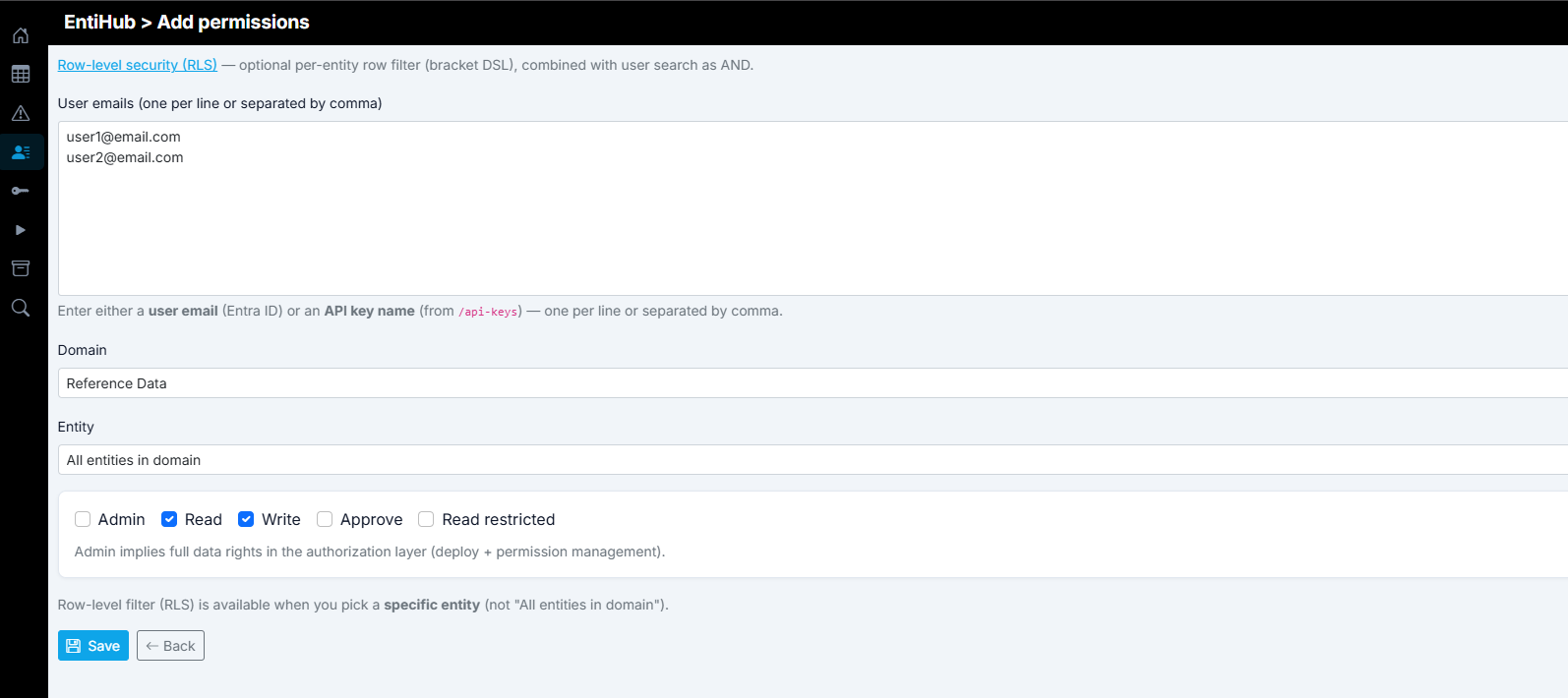
After clicking Save, permissions are stored and shown in the table. Permissions are displayed per user. You can then edit them directly via checkboxes in the table.
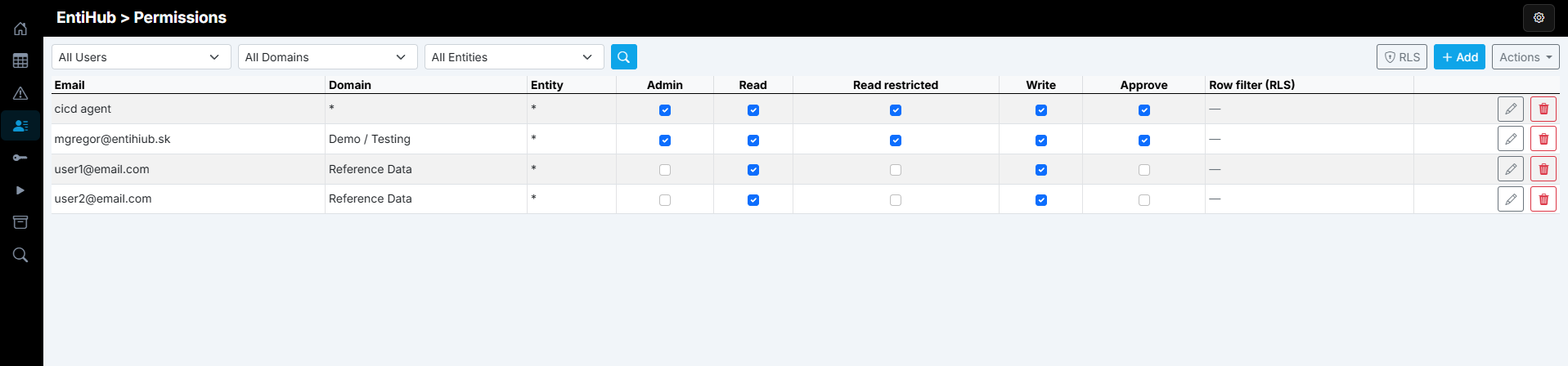
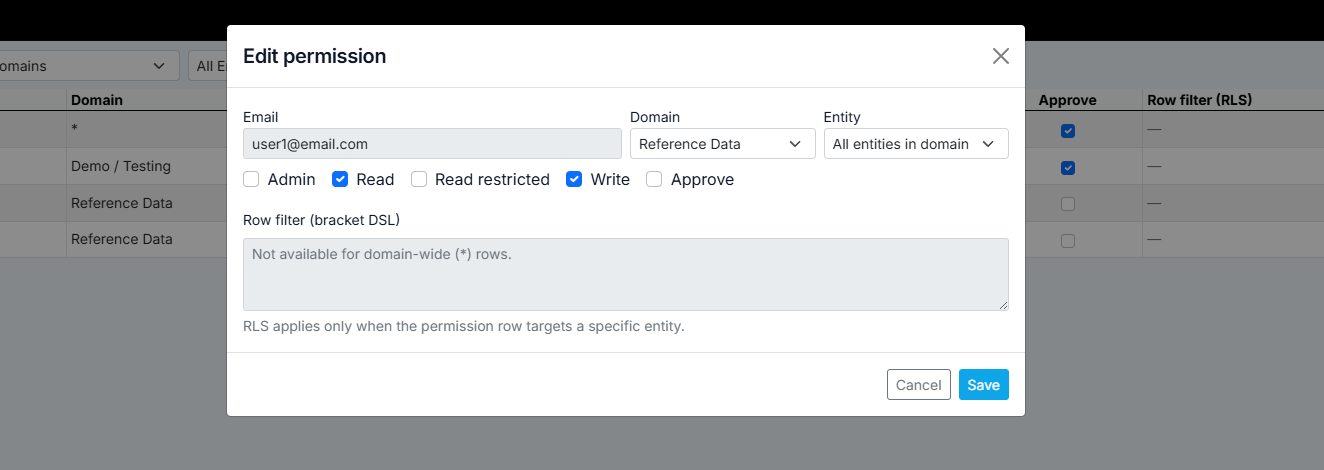
If you want to edit details such as RLS, click the edit button to open a dialog where you can configure details for the selected permission.
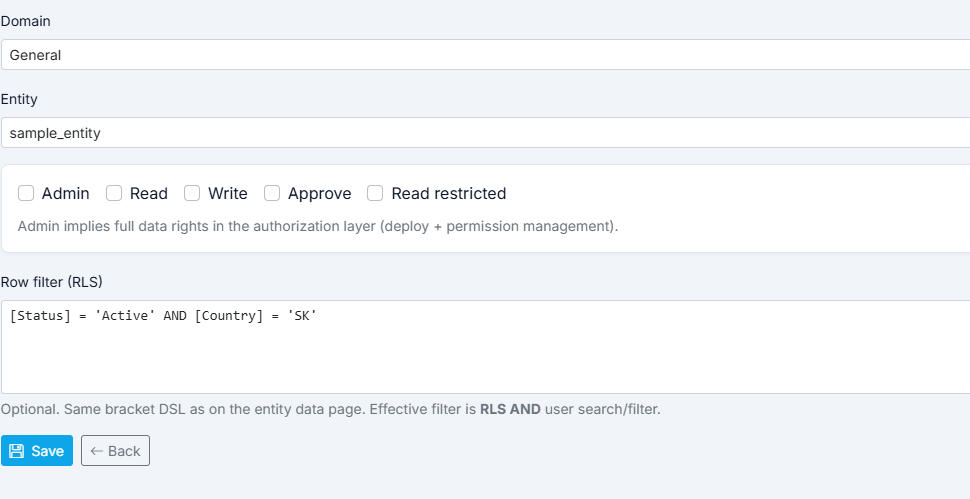
If you selected a specific domain and entity when adding a permission, you can also define Row-level security (RLS). This allows granting access only to a selected subset of entity data. RLS is defined as a filter. For example, in classification entities (such as products by country), you can grant access only to one selected country. RLS must be defined as an SQL filter.
Configured permissions can be saved and managed in bulk through a YAML definition. For this, click the Actions button and choose one of the available functions. Permissions can be imported or exported.
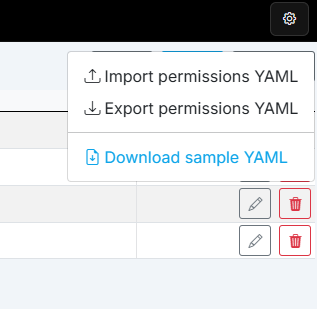
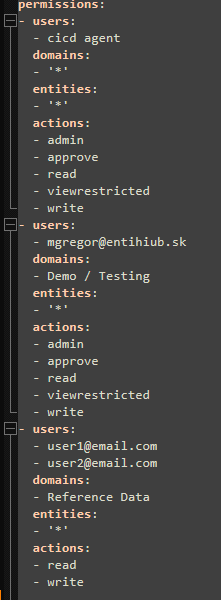
When exported, permissions can be stored in Git and later deployed via API. An example of exported permissions in YAML is shown below.
Permissions for API Keys
In this dialog, permissions can be defined not only for users (via email), but also for generated API Keys. Their behavior is described in a separate section.